
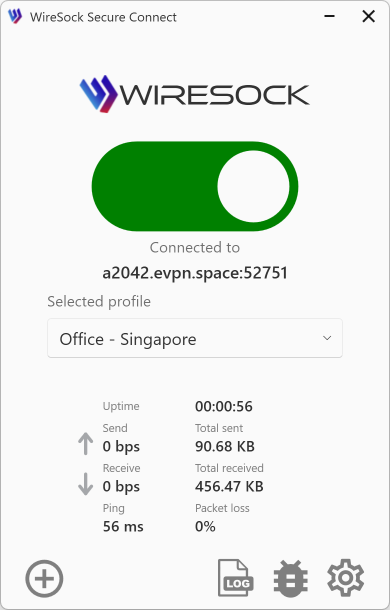
Effective Troubleshooting using wiresock-client.exe
Comprehensive Logging and Analysis
Enabling Detailed Logging
When experiencing issues with WireSock Secure Connect, enable verbose logging. Start the application or service with the -log-level all option to generate a comprehensive debug log.
- Application Mode: The debug log will appear directly in the console window.
- Service mode: Log files are stored at
C:\ProgramData\NT KERNEL\WireSock VPN Client.
Network Traffic Analysis
For thorough network analysis, the WireSock VPN Client captures all processed network packets in PCAP format. These files are essential for troubleshooting and can be analyzed using tools like Wireshark.
Storage location: By default, PCAP files are saved in the service’s working directory, typically C:\Windows\System32 when running as a service.
Performance Considerations
Note: The -log-level all setting is intended for debugging only due to the extensive data it captures. Using this log level regularly is not recommended, as it may significantly impact application performance.
Support and Assistance
If you encounter issues or have questions, our support team is here to help. Visit our FAQs for quick answers or use the to connect with other users and receive personalized assistance. We're committed to ensuring you have the best experience with WireSock Secure Connect.