
Deployment Guide (Enterprise Edition)
WireSock Secure Connect provides deployment automation options for managed enterprise environments.
Deployment options allow administrators to:
- install the application silently;
- deploy VPN profiles automatically;
- deploy licenses automatically;
- define how much control end users have over the application;
- prevent users from changing profiles, licenses, or application settings.
This is useful when WireSock Secure Connect must be rolled out to many endpoints with a predictable and controlled configuration.
NOTE
This section applies only to the Pro version of the application.
When to use deployment options
Use deployment options when you want to deploy WireSock Secure Connect through tools such as Microsoft Intune, SCCM, MDT, Group Policy, or custom scripts.
Typical use cases include:
- always-on corporate VPN for employees;
- locked-down VPN access for kiosks or shared workstations;
- restricted VPN access for contractors;
- preconfigured VPN profiles for different departments, offices, or regions;
- pilot deployments where users can test the connection but cannot modify configuration;
- compliance-controlled environments where users must not disable or reconfigure the VPN.
How deployment works
Deployment is controlled through command-line parameters passed to the installer.
The administrator prepares:
- the WireSock Secure Connect Pro installer;
- one profile file or a directory with multiple profiles;
- a license file;
- a deployment mode that defines the end-user experience.
The installer can then be executed silently and provision the application automatically.
Quick start
For a fully locked-down always-on deployment:
wiresock-secure-connect-pro-x64-<version>.exe /s Deployment=tiny Profile=C:\deploy\corp.conf License=C:\deploy\license.txtFor a deployment where the user can manually connect and disconnect:
wiresock-secure-connect-pro-x64-<version>.exe /s Deployment=small Profile=C:\deploy\profiles\ License=C:\deploy\license.txtFor a deployment where the user can open the main application window, but cannot manage profiles or settings:
wiresock-secure-connect-pro-x64-<version>.exe /s Deployment=large Profile=C:\deploy\profiles\ License=C:\deploy\license.txtPrerequisites
Silent installation
For automated deployments, silent mode is required.
Use the /s parameter:
/sThis ensures that the installation runs without user interaction.
.NET 10
WireSock Secure Connect requires .NET 10 to run.
You can download the latest .NET 10 Desktop Runtime from Microsoft:
https://dotnet.microsoft.com/en-us/download/dotnet/10.0
During installation, WireSock Secure Connect can automatically download and install .NET if it is not detected on the system.
To prevent the installer from installing .NET, use:
InstallDotNet=falseImportant: If .NET 10 is not installed and
InstallDotNet=falseis used, WireSock Secure Connect will not run.
Installer parameters
Supported syntax:
wiresock-secure-connect-pro-x64-<version>.exe /s [InstallDotNet=false] Deployment=<mode> Profile=<path> License=<path>| Parameter | Description |
|---|---|
/s | Silent installation mode. Required for automated deployment. |
InstallDotNet=false | Skips .NET installation during setup. Use only if .NET 10 is deployed separately. |
Deployment=<mode> | Defines the user interface and feature availability mode. |
Profile=<path> | Path to a profile file or a directory containing profiles. |
License=<path> | Path to a license file. |
Deployment modes
The Deployment parameter defines which application features are available to the end user after installation.
Deployment modes are ordered from the most restrictive end-user experience to the most interactive one.
| Mode | Best for | User control level |
|---|---|---|
tiny | Fully locked-down always-on VPN | No user control |
tiny1 | Locked-down VPN with visible status | No user control, but notifications and tooltip are visible |
tiny2 | Locked-down VPN with restartable tray app | User can close and restart the tray application only |
small | User-controlled connection | User can connect and disconnect manually |
small1 | User-controlled connection with profile choice | User can connect, disconnect, and select a deployed profile |
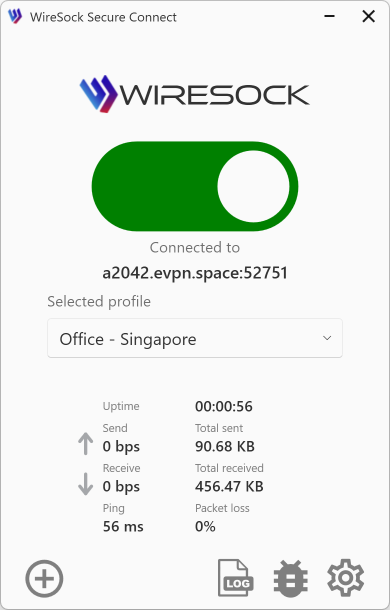
large | Managed access to the main UI | User can use the main window, but cannot manage configuration |
Feature comparison
| Mode | Auto start | Auto connect | System tray icon | Notifications | Context menu | Connect/Disconnect | Profile selection | Main window |
|---|---|---|---|---|---|---|---|---|
tiny | Yes | Yes | Status only | No | No | No | No | No |
tiny1 | Yes | Yes | Yes | Yes | No | No | No | No |
tiny2 | Yes | Yes | Yes | Yes | Exit only | No | No | No |
small | Yes | No | Yes | Yes | Yes | Yes | No | No |
small1 | Yes | No | Yes | Yes | Yes | Yes | Yes | No |
large | Yes | No | Yes | Yes | Yes | Yes | Yes | Yes |
Mode details
tiny
The tiny mode is the most restrictive deployment mode.
- The user only sees the application icon in the system tray.
- The tray icon displays the connection state: disconnected, connecting, or connected.
- The application automatically connects to the deployed profile when the user logs in.
- If the VPN connection is lost, the application automatically reconnects without user interaction.
- The user cannot open the main application window.
- The user cannot view, edit, import, export, or delete profiles.
- The user cannot change application settings.
- The user cannot view, change, or remove the installed license.
- The user cannot close the application manually.
- External IP and location detection is disabled.
Use this mode when users require always-on VPN access and must not control or modify the VPN configuration.
tiny1
The tiny1 mode is the same as tiny, with additional tray visibility.
- The user receives tray notifications when the VPN connection is established or disconnected.
- The user can view a tray tooltip that shows the current connection status.
Use this mode when users should not control the VPN connection, but should be able to see connection status information.
tiny2
The tiny2 mode is the same as tiny1, but gives the user limited access to the tray menu.
- The user can close the application and start it again using the desktop shortcut.
- Closing the application does not disconnect the VPN connection.
- The VPN connection continues to run in the background.
- The user cannot manually disconnect the VPN connection.
Use this mode when users may need to restart the tray application without being able to disconnect the VPN.
small
The small mode allows the user to control the VPN connection state.
- The application does not automatically connect when the user logs in.
- The user can manually connect and disconnect the VPN connection from the tray menu.
- The user still cannot open the main application window.
- The user cannot access application settings.
Use this mode when users should decide when the VPN connection is active, but must not change profiles, licenses, or settings.
small1
The small1 mode is the same as small, but also allows profile selection from the tray menu.
- If multiple profiles are deployed, the user can select which profile to use.
- The main application window and settings remain unavailable.
- The user cannot import, export, edit, view, or delete profiles.
Use this mode when users need to choose between several administrator-approved profiles.
large
The large mode provides access to the main application window while keeping profile and settings management restricted.
- The user can open the main application window.
- The user can select a profile, connect, and disconnect.
- The user cannot import, export, edit, view, or delete profiles.
- The user cannot access or change application settings.
Use this mode for technical users, support engineers, pilot users, or managed power users who need the main UI but should not manage configuration.
Deployment mode progression
| Mode | Added capability |
|---|---|
tiny | Tray status icon only |
tiny1 | Tray notifications and status tooltip |
tiny2 | Ability to close and restart the tray application without disconnecting VPN |
small | Manual connect and disconnect from the tray menu |
small1 | Selection between deployed profiles from the tray menu |
large | Main UI access for profile selection and connection control |
As the mode becomes less restrictive, users gain more interaction with the application. Profile management, license management, and application settings remain controlled by the administrator in all deployment modes.
Choosing the right deployment mode
Use the following scenarios as a guideline.
| Scenario | Recommended mode |
|---|---|
| Always-on corporate VPN | tiny or tiny1 |
| Kiosk or shared workstation | tiny |
| Helpdesk-friendly locked deployment | tiny1 |
| Managed VPN with background continuity | tiny2 |
| User-controlled VPN without configuration access | small |
| Multiple pre-approved VPN profiles | small1 |
| Semi-managed power users | large |
| Contractors and external users | tiny, small, or small1 |
| Compliance-controlled environments | tiny or tiny1 |
| Gradual rollout or pilot deployment | small, small1, or large |
| Per-department access profiles | small1 |
Scenario details
Always-on corporate VPN
Use tiny or tiny1 when users require continuous VPN access to corporate resources.
Administrators prepare per-user VPN profiles in advance, configure split tunneling by application or network if required, and deploy the profile and license during installation. Users do not need to understand VPN configuration or manage the connection manually.
Kiosk or shared workstation
Use tiny for kiosks, shared computers, point-of-sale terminals, production workstations, or warehouse devices.
The user cannot disconnect the VPN, close the application, change settings, or modify profiles. This helps keep the workstation connected through a controlled VPN profile at all times.
Helpdesk-friendly locked deployment
Use tiny1 when users should not control the VPN connection, but should still be able to see status information.
Tray notifications help users understand when the VPN connects or disconnects. The tray tooltip can help support teams quickly verify the current connection state during troubleshooting.
Managed VPN with background continuity
Use tiny2 when users may be allowed to close and restart the tray application while the VPN connection remains active in the background.
Closing the application does not disconnect the VPN tunnel. The user still cannot manually disconnect the VPN connection or change the deployed configuration.
User-controlled VPN without configuration access
Use small when users should decide when the VPN connection is active.
The user can connect and disconnect manually from the tray menu. Profiles, licenses, and application settings remain protected from end-user changes.
Multiple pre-approved VPN profiles
Use small1 when users need to choose between several administrator-provided VPN profiles.
Example profiles may represent different offices, departments, environments, or regions. The user can select a profile from the tray menu, but cannot import, export, edit, view, or delete profiles.
Semi-managed power users
Use large for technical users, support engineers, administrators, or pilot users who need access to the main application window.
The user can select a profile and manage the connection from the main UI. Profile management, license management, and application settings remain restricted.
Contractors and external users
Use tiny, small, or small1 for contractors or external users who should receive access only to specific corporate resources.
Administrators can prepare restricted profiles with split tunneling by application or network. Select tiny for always-on access, small for manual connection control, or small1 when multiple approved profiles are required.
Compliance-controlled environments
Use tiny or tiny1 in environments where users must not disable the VPN tunnel or modify connection settings.
This is useful for organizations with strict security, audit, or regulatory requirements. tiny1 may be preferable if visible notifications and status information are required for operational support.
Gradual rollout or pilot deployment
Use small, small1, or large for pilot groups, staged rollouts, or early deployments.
These modes allow more user interaction while keeping configuration management under administrator control. large is useful when pilot users need access to the main UI for validation and feedback.
Per-department access profiles
Use small1 when users need access to different VPN profiles depending on their department, role, or region.
Administrators deploy multiple approved profiles in advance. Users can select the required profile from the tray menu without being able to modify the profile content.
Profile parameter
Profile=<full_path_to_profile_or_directory>The Profile parameter accepts either:
- a single profile file;
- a directory containing multiple profiles.
Profiles are automatically deployed and stored in encrypted form.
For restricted modes such as tiny, tiny1, tiny2, and small, deploying a single profile is recommended. Use small1 or large when users need to choose between multiple deployed profiles.
License parameter
License=<full_path_to_license_file>The License parameter points to a license file that is installed during deployment.
- The license file may contain multiple licenses.
- Licenses must be separated by an empty line.
- The base license must appear before overlays.
- It is recommended to use the license file downloaded from your account dashboard.
Deployment examples
Fully locked-down corporate deployment
wiresock-secure-connect-pro-x64-3.3.3.1.exe /s Deployment=tiny Profile=C:\deploy\corp.conf License=C:\deploy\license.txtUse this when the VPN must connect automatically and the user must not control the application.
Locked deployment with visible connection status
wiresock-secure-connect-pro-x64-3.3.3.1.exe /s Deployment=tiny1 Profile=C:\deploy\corp.conf License=C:\deploy\license.txtUse this when the VPN must remain locked down, but users should see notifications and current connection status.
Controlled deployment with manual connect
wiresock-secure-connect-pro-x64-3.3.3.1.exe /s Deployment=small Profile=C:\deploy\corp.conf License=C:\deploy\license.txtUse this when users may decide when to connect, but must not change configuration.
Deployment with multiple approved profiles
wiresock-secure-connect-pro-x64-3.3.3.1.exe /s Deployment=small1 Profile=C:\deploy\profiles\ License=C:\deploy\license.txtUse this when users need to select between multiple administrator-provided profiles.
Managed main UI deployment
wiresock-secure-connect-pro-x64-3.3.3.1.exe /s Deployment=large Profile=C:\deploy\profiles\ License=C:\deploy\license.txtUse this when users need access to the main application window, but configuration management must remain restricted.
Deployment without automatic .NET installation
wiresock-secure-connect-pro-x64-3.3.3.1.exe /s InstallDotNet=false Deployment=tiny Profile=C:\deploy\corp.conf License=C:\deploy\license.txtUse this only when .NET 10 is already installed or deployed separately.
Microsoft Intune deployment
WireSock Secure Connect can be deployed using Microsoft Intune as a Win32 application.
High-level steps:
- Package the installer using the Microsoft Win32 Content Prep Tool.
- Stage profile and license files locally or include them in the Win32 package.
- Use an install command that includes
/sand the desired deployment parameters. - Configure detection rules, such as a registry key or installed executable.
- Assign the application to device or user groups.
For Intune deployments, local staging of profile and license files is recommended because installation often runs under the SYSTEM account.
SCCM deployment
For Microsoft Configuration Manager:
- Create a new Application.
- Ensure the profile and license files are available to the deployment context.
- Specify the install command.
Example:
wiresock-secure-connect-pro-x64-3.3.3.1.exe /s Deployment=tiny Profile=\\fileserver\deploy\corp.conf License=\\fileserver\deploy\license.txt- Configure a detection method, such as file version or registry.
- Deploy to collections.
If the installer runs under SYSTEM, make sure the SYSTEM account can access the network share, or stage the files locally before installation.
MDT deployment
For Microsoft Deployment Toolkit:
- Add the installer to your Applications.
- Use a silent install command with
/s. - Add the application to the Task Sequence.
- Ensure profiles and licenses are accessible during deployment, either from local media or a reachable network share.
Silent upgrade
Upgrading can be performed by running the new installer version with /s.
The installer performs an in-place upgrade while preserving profiles and licenses.
Example:
wiresock-secure-connect-pro-x64-3.4.0.exe /s Deployment=tinyTroubleshooting silent installation
Silent deployments typically fail due to environmental issues, such as permissions, blocked driver binaries, disabled Windows services, or security software.
Use the checklist below to diagnose issues quickly.
Collect installer logs
- Check
%TMP%for installer logs that start withWireSock, for exampleWireSock*.log. - If the installation includes a kernel driver, the driver installer may generate a separate driver log file. Include it when reporting issues.
Validate prerequisites and environment
- Ensure the installer is executed with sufficient permissions. Enterprise deployments usually run under SYSTEM.
- Verify that required Windows services are running:
- Plug and Play
- Windows Management Instrumentation (Winmgmt)
- Cryptographic Services (CryptSvc)
Check security software
Some antivirus or EDR products may quarantine or block driver files immediately after extraction.
- Review antivirus or EDR logs for blocked items, such as
ndiswgc.sys, if applicable. - If this is confirmed as a false positive, consider a controlled workaround:
- temporary exclusion for the installer and driver files during deployment;
- a short-lived maintenance window policy exception.
Confirm network access
If Profile= or License= points to a network share, ensure the deployment context can reach that path.
- Prefer local staging when deploying through Intune, SCCM, or MDT.
- If using UNC paths, validate permissions explicitly for the deployment identity.
Capture exit code
When deploying via scripts, capture the installer exit code and log it centrally. This helps correlate failure causes across the fleet.
Known issues
Antivirus or EDR may block driver files
Some security products can quarantine or block kernel driver binaries immediately after extraction, such as ndiswgc.sys, if applicable.
If installation fails, review antivirus or EDR logs and consider deploying an exclusion or temporary policy exception in a controlled manner.
Installation may fail if required Windows services are disabled
If any of the following services are disabled, driver installation and system integration may fail:
- Plug and Play
- Windows Management Instrumentation (Winmgmt)
- Cryptographic Services (CryptSvc)
Network share access in SYSTEM context
When deploying via Intune, SCCM, or MDT, the installer often runs under the SYSTEM account.
UNC paths for Profile= and License= may not be accessible in that context. Prefer staging files locally or explicitly granting access to the deployment identity.
.NET 10 is required at runtime
If .NET 10 is not installed, WireSock Secure Connect will not run. If you use InstallDotNet=false, ensure .NET 10 is deployed separately.
Best practices
- Always use
/sin automated environments. - Test deployment modes in a staging ring before mass rollout.
- Use
tinyfor fully managed endpoints. - Use
smallorsmall1when limited user interaction is required. - Use
largeonly when users need access to the main window. - Stage profile and license files locally when deploying under SYSTEM.
- Store profile and license files securely.
- Validate antivirus and EDR compatibility before mass deployment.
- Capture installer logs and exit codes during rollout.
For enterprise deployment assistance, contact WireSock support.