
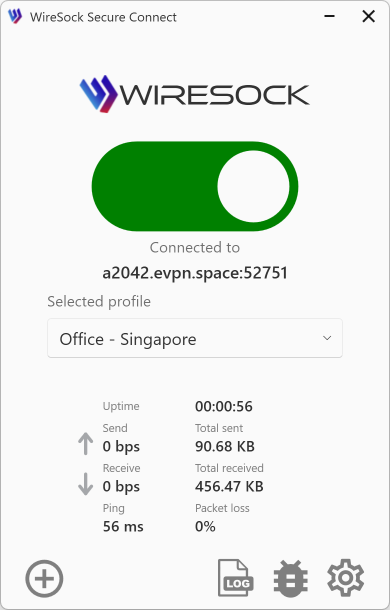
WireSock Secure Connect — wiresock-client.exe
Command Line Interface (CLI)
The WireSock Secure Connect application offers a command-line interface (CLI) for Windows, accessible via wiresock-client.exe. This application can be run either as a console application or as a Windows service.
Basic Usage
When you execute wiresock-client.exe without any parameters, you’ll see the following usage information:
WireSock WireGuard VPN Client Version X.Y.Z

Usage:

install
  Installs the service with the specified configuration.
   Options:
     -start-type <2..4>        Service start type:
                                 2 - Automatic start on system startup.
                                 3 - Manual start.
                                 4 - Disabled state; must be enabled before starting.
     -account <name>           Account name under which the service will run.
     -password <password>      Password for the account.
     -config <path>            Full path to the WireGuard client configuration.
     -fallback-config <path>   Full path to the fallback WireGuard client configuration (optional).
     -log-level <level>        Logging level: error, info, debug, or all.
     -lac                     Spawn Virtual Network Interface associated with the tunnel (optional).
     -network-lock <mode>      Network lock mode: enabled/on or disabled/off (optional, default: disabled).
                              When enabled, prevents traffic leaks outside the VPN tunnel.
   Example:
     install -start-type 2 -account User -password Pass -config "path\to\config.conf" -log-level info -network-lock enabled

run
  Starts WireSock Secure Connect as a regular process (not as a service).
   Accepts the same options as 'install', without the start type, account, and password.
   Example:
     run -config "path\to\config.conf" -log-level info -network-lock enabled

uninstall
  Removes the installed service.

import <wireguard-client-config-full-pathname> [-account <name> -password <password>]
  Encrypts the specified WireGuard client configuration and places it in a protected folder.
   If -account and -password are specified, the configuration is accessible under the given user account.
   Otherwise, it is only accessible when running as a Windows Service under the LocalSystem account.
   Example:
     import "path\to\config.conf"
     import "path\to\config.conf" -account User -password Pass

reset-network-lock
  Resets the network lock driver state to default.
  Useful for recovery if the application crashed or exited abnormally while network lock was enabled.
  Requires administrator privileges.
  Example:
    reset-network-lock

Note:
 Replace <path\to\config.conf> with the actual full path to your WireGuard client configuration file.
 Use double quotes if the path contains spaces, e.g., "C:\path to\config.conf".
If you have your WireGuard configuration file ready, you can start WireSock Secure Connect as a standalone application with the following command:
wiresock-client.exe run -config [config_full_path_name] -log-level errorReplace [config_full_path_name] with the actual path to your WireGuard configuration file to connect seamlessly.
For scenarios where you require the WireSock VPN Client to operate in virtual network interface mode, execute this command instead:
wiresock-client.exe run -config [config_full_path_name] -log-level error -lacUse the -log-level error parameter for routine operations to reduce log output. Reserve higher verbosity levels for troubleshooting.
Windows Service
Installing WireSock Secure Connect as a Windows service
Here’s a more structured and user-friendly version of the instructions for installing and managing the WireSock VPN Client Service:
To set up WireSock Secure Connect to automatically start with Windows, use the following command:
`wiresock-client.exe install -start-type 2 -config [config_full_path_name] -log-level none`Ensure you replace [config_full_path_name] with the actual path to your WireGuard configuration file.
For virtual network adapter mode
If you need to install the client with a virtual network adapter, append the -lac option:
wiresock-client.exe install -start-type 2 -config [config_full_path_name] -log-level none -lac
Managing the Service
Starting and Stopping the Service:
You can control the WireSock VPN Client Service via the Windows Services interface or with administrative command-line instructions:
To start the service:
sc start wiresock-client-serviceTo stop the service:
sc stop wiresock-client-serviceNOTE
The service name may differ between editions. In Professional builds it is wiresock-pro-client-service.
Uninstallation
Before uninstalling the service, stop it. Then remove the service using one of the following methods:
With the client command: wiresock-client.exe uninstall
Or via the command line: sc delete wiresock-client-service
NOTE
Run these commands with Administrator privileges.
Starting modes
Choosing Between Application and Service Modes for WireSock VPN Client
Here’s an enhanced explanation of the differences between running WireSock VPN Client in application mode versus service mode:
Application mode
Running WireSock Secure Connect as a regular application is suitable for most users. In this mode, the VPN client only manages network routing for processes initiated by the currently logged-in user. System-level processes or those started by other users are not affected and continue to use the default network interface.
Service mode
Installing WireSock Secure Connect as a Windows service allows it to operate at the system level. It can manage network routing for all processes on the system, regardless of which user started them. This mode is useful when VPN connectivity is required across multiple user accounts or for background services.
Key Consideration:
- In Application Mode, the VPN client’s split tunneling feature is limited to the current user’s processes.
- In Service Mode, the VPN client has the capability to handle split tunneling for all processes, providing a more comprehensive coverage.
Choose the mode that best fits your use case for the most efficient VPN experience with WireSock Secure Connect.